Introduction
One will discover how to configure an automatic pill dispenser so that a caregiver can monitor medication adherence remotely. The guide explains why remote access improves safety for seniors, individuals with dementia, and anyone who requires assistance with complex medication schedules. By following each step, one can ensure that alerts, dosage records, and refill notifications are shared securely with a trusted caregiver. The information is valuable because it reduces missed doses, prevents accidental double dosing, and provides peace of mind for families and health professionals.
What You Will Need
- Smartphone or tablet running iOS or Android
- Wi‑Fi connection at home
- Automatic pill dispenser with Bluetooth capability (examples are linked below)
- Companion app installed from the App Store or Google Play
- Caregiver’s email address for account sharing
Step 1: Prepare the Dispenser Hardware
One should begin by selecting a dispenser that supports both automatic dosing and mobile app integration. The Betife 2nd Gen Pill Dispenser offers a 28‑slot locked carousel, an XL LCD screen, and a 5000‑cycle gearbox that guarantees reliable operation for years. Priced at $63.99 with a rating of 4.4/5 from 124 reviews, it provides mix‑proof and kid‑proof protection, which is essential for households with children or individuals prone to wandering. The large display ensures that one can set the clock and dosage times without visual strain.
If Bluetooth connectivity is preferred, the JULOS Bluetooth Pill Dispenser includes a SmartLife app, up to nine daily alerts, and a locking cover. It is priced at $74.99 and holds a 4.7/5 rating from 13 reviews. The device’s modular rings allow storage of up to 672 aspirin‑sized pills, making it suitable for users with multiple prescriptions. Selecting a dispenser with Bluetooth simplifies remote monitoring because the companion app can transmit adherence data directly to a caregiver’s device.
One must place the dispenser on a stable surface near a power outlet if battery replacement is required. Ensure that the device is fully charged or that fresh batteries are installed before proceeding.
Step 2: Install the Companion App
After confirming the hardware, one should download the appropriate companion app. For the Betife model, the manufacturer recommends the generic “SmartLife” app, which is available on both iOS and Android platforms. For the JULOS model, the same SmartLife app is used, providing a unified experience across devices.
Open the app store, search for “SmartLife,” and install the application. Once installed, launch the app and grant the required permissions for Bluetooth, notifications, and location services. These permissions enable the app to detect the dispenser, send alerts, and record dosage events accurately.
During the initial setup, the app will prompt one to create a personal account using an email address. One should use a secure password and enable two‑factor authentication if available, as this protects sensitive health data.
Step 3: Pair the Dispenser with the Smartphone
With the app open, one should activate the Bluetooth pairing mode on the dispenser. For the Betife unit, press the “Pair” button on the console; for the JULOS unit, slide the lock to the open position and hold the Bluetooth icon until it flashes. The app will display a list of nearby devices; select the appropriate model.
Follow the on‑screen instructions to confirm the pairing code, if presented. Successful pairing is indicated by a steady connection icon and a confirmation message. At this stage, one can test the alarm function by setting a short‑term reminder and observing whether the dispenser emits the expected sound and light cues.
It is advisable to keep the smartphone within a few meters of the dispenser during the first 24 hours to ensure a stable connection. If the connection drops, restart both the app and the dispenser, then repeat the pairing process.
Step 4: Create a Caregiver Account and Grant Access
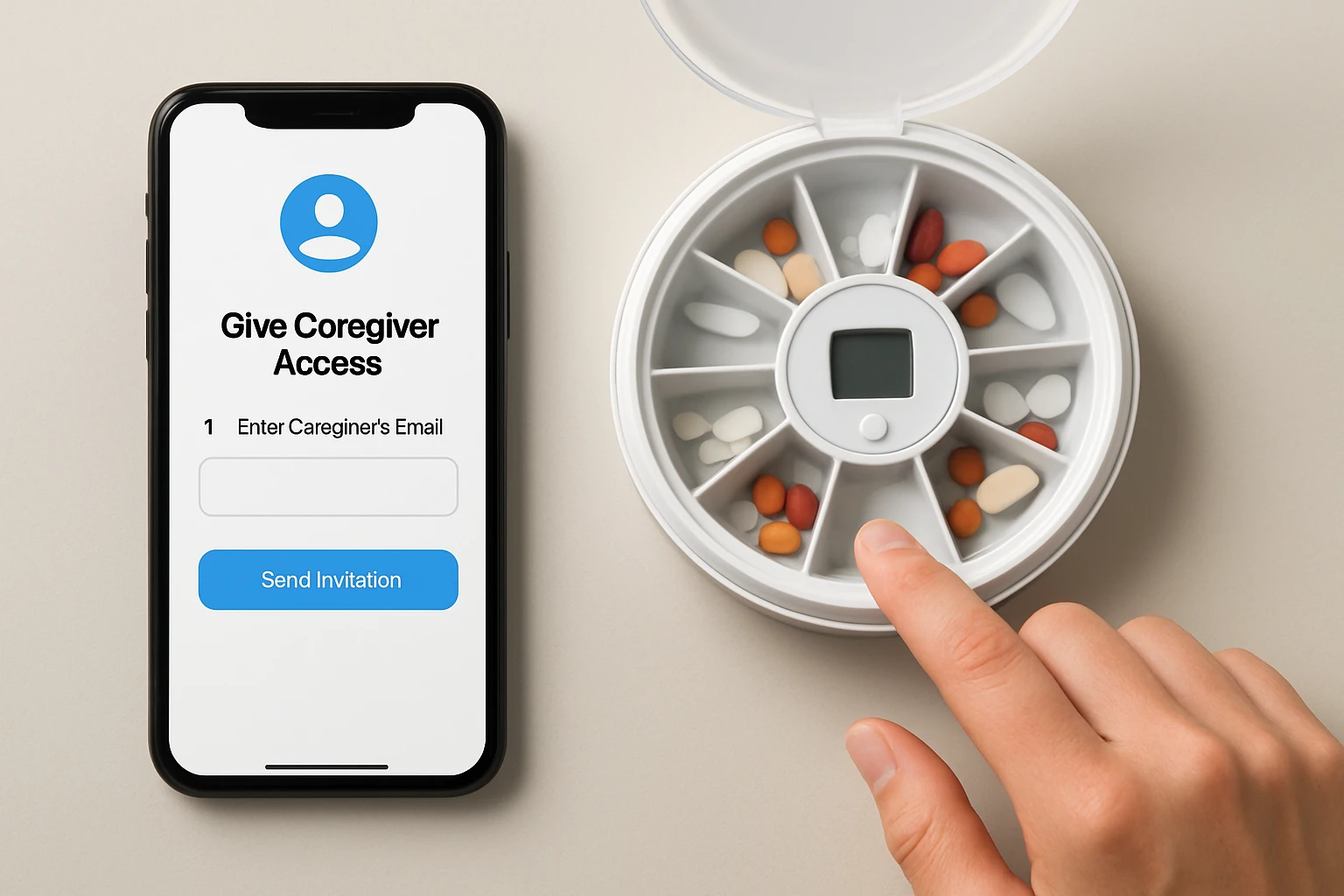
Most modern dispenser apps allow a primary user to invite secondary users. Within the SmartLife app, navigate to Settings → User Management → Add Caregiver. Enter the caregiver’s email address and assign a role such as “Observer” or “Full Access” depending on the level of control required.
For a caregiver who needs to receive alerts and view adherence logs, select “Full Access.” The caregiver will receive an invitation email containing a secure link. Upon accepting the invitation, the caregiver must install the SmartLife app on their own device and log in with the provided credentials.
One should verify that the caregiver can see the dispenser’s dashboard, which displays upcoming doses, missed dose alerts, and battery status. The Betife and JULOS devices both transmit this information in real time, allowing the caregiver to intervene promptly if a dose is missed.
Step 5: Configure Alerts and Remote Monitoring Preferences
After access has been granted, one can customize the notification settings for both the primary user and the caregiver. In the app, go to Alerts → Edit Alerts. Choose the number of daily alarms (up to nine for the JULOS model) and set the preferred sound pattern and LED halo intensity. For users with hearing impairment, select a higher volume and a distinct beep pattern.
Enable push notifications for the caregiver’s device so that they receive an immediate alert when a dose is due, missed, or taken. The app also supports email summaries, which can be useful for caregivers who prefer a daily report.
To monitor medication stock, enable the “Low Stock” reminder. The dispenser will send a notification when the remaining pills fall below a predefined threshold, prompting the primary user or caregiver to reorder supplies.
Tips & Pro Tips
- Place the dispenser near a Wi‑Fi router to reduce latency in data transmission.
- Regularly update the SmartLife app to benefit from security patches and new features such as machine‑learning‑based smart alarms.
- Use the Fullicon Weekly Pill Organizer as a backup for short‑term travel; its wall‑mount design ensures visibility when the primary dispenser is unavailable.
- Label each compartment with the medication name and dosage to avoid confusion when the caregiver reviews the schedule remotely.
- If the primary user travels frequently, consider the Ellie Monthly Smart Pill Organizer, which offers machine‑learning‑driven smart alarms and a built‑in battery that lasts for a month.
Troubleshooting
Problem: Caregiver does not receive alerts.
Solution: Verify that push notifications are enabled in the device settings for the SmartLife app. Ensure that the caregiver’s account status is “Active” in User Management. Restart the app and check the Bluetooth connection status on the dispenser.
Problem: Dispenser does not sync with the app after a power outage.
Solution: Power cycle the dispenser by removing the batteries for 30 seconds, then reinstall them. Re‑pair the device using the steps in Step 3. If the issue persists, update the firmware via the app’s Settings → Device → Firmware Update.
Conclusion
One has now learned how to give a caregiver secure access to an automatic pill dispenser app, configure remote monitoring, and customize alerts for optimal medication adherence. By selecting a reliable dispenser such as the Betife 2nd Gen Pill Dispenser or the JULOS Bluetooth Pill Dispenser, one ensures that both hardware and software work together seamlessly. The steps outlined in this guide reduce the risk of missed or double doses, empower caregivers with real‑time data, and ultimately improve health outcomes for individuals who depend on regular medication.
Products Mentioned in This Guide
Frequently Asked Questions
How do I grant a caregiver access to my automatic pill dispenser app?
Open the companion app, go to Settings → User Management, enter the caregiver’s email, assign a role, and send the invitation.
What devices are needed for remote caregiver monitoring?
A smartphone or tablet (iOS or Android), a Wi‑Fi connection, and a Bluetooth‑enabled automatic pill dispenser with its companion app installed.
Is the caregiver’s access secure and private?
Yes; access is protected by encrypted login credentials and can be revoked at any time from the app’s user settings.
Can the caregiver receive alerts for missed or double doses?
The app sends real‑time push notifications and email alerts whenever a dose is missed, taken early, or duplicated.
What should I do if the caregiver cannot see dosage records?
Ensure the dispenser is paired via Bluetooth, the home Wi‑Fi is active, and both the primary and caregiver accounts are synced in the app; then refresh the dashboard or reinstall the app if needed.