Introduction
In this guide the reader will learn how to program a large‑button remote that is optimized for senior users. The process is explained in a clear, step‑by‑step manner that reduces confusion and minimizes the need for technical support. By following the instructions one can create a simplified control experience that enhances independence and comfort. The value of this guide lies in its focus on accessibility, safety, and reliability.
What You’ll Need
- Large‑button universal remote (examples are provided below)
- Two AAA batteries (not included with most remotes)
- Device code list or access to the internet for code lookup
- Pen and label stickers for button identification
- Clear workspace with good lighting
The following products are recommended because they combine ease of use with reliable performance:
- GE Backlit Universal Remote – a 4‑device remote with illuminated buttons and a robust code library.
- Qisbola Universal Remote – an affordable LG‑focused remote with shortcut keys for popular streaming services.
- LOUTOC Universal Remote – a versatile remote that supports a wide range of TV brands and audio‑video devices.
Step‑by‑Step Instructions
Step 1: Prepare the Remote and Power Source
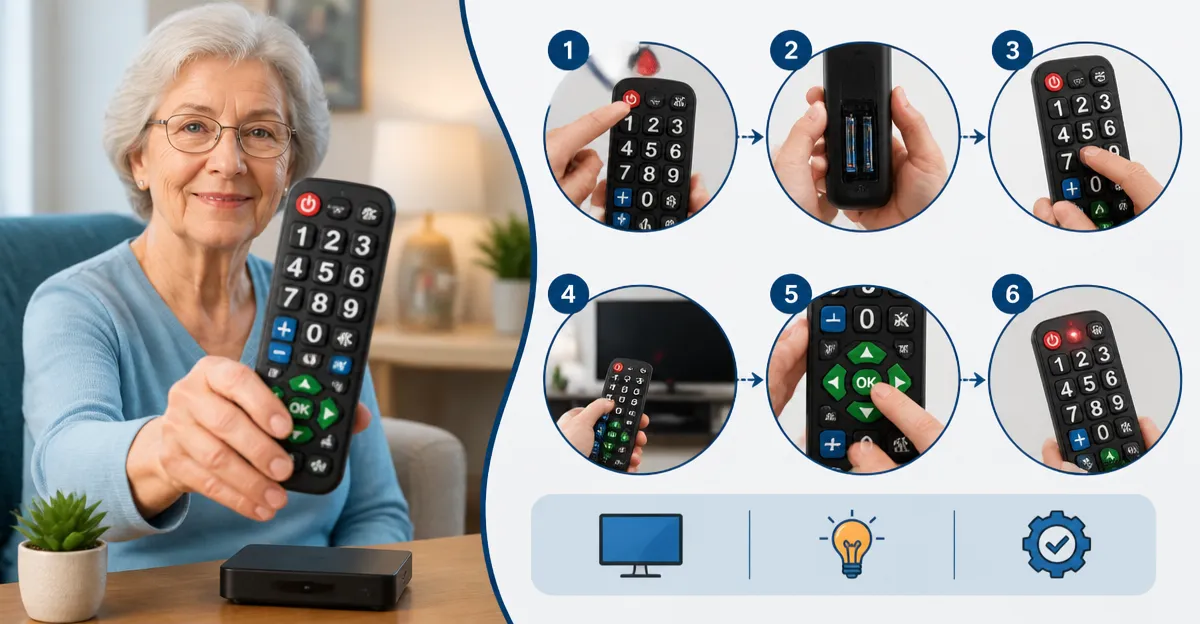
Insert two fresh AAA batteries into the remote, ensuring the polarity matches the diagram inside the battery compartment. The remote should power on and display a faint backlight if it includes illumination. For seniors who may have reduced vision the GE Backlit Universal Remote provides blue LED backlighting that remains visible in dim environments. This remote also offers a classic black finish that blends with most living‑room décor.
Step 2: Identify the Device to Be Controlled
Determine which television, soundbar, or streaming box will be paired with the remote. Write down the brand and model number on a piece of paper; this information is required for code lookup. The LOUTOC Universal Remote supports over 50,000 button presses and includes a code list that covers Samsung, LG, Sony, Vizio, and many other brands, making it suitable for households with mixed equipment.
Step 3: Access the Correct Code
Open the code list that came with the remote or visit the manufacturer’s website to locate the four‑digit code for the identified device. For LG televisions the Qisbola Universal Remote is pre‑programmed for many LG models, reducing the need for manual code entry. If the device is not listed, use the automatic code search function described in the manual.
Step 4: Enter Programming Mode
Press and hold the SETUP button on the remote until the red indicator light becomes steady. This signals that the remote is ready to receive a code. Next, press the device button (TV, DVD, or AUDIO) that corresponds to the equipment being programmed. Enter the four‑digit code using the numeric keypad; the remote will confirm successful entry with a brief flash of the indicator light.
Step 5: Test the Functions
Point the remote at the device and press the power button to verify that the device turns on or off. Test volume, channel up, and channel down to ensure full functionality. If the device does not respond, repeat Step 4 with the next code in the list until the remote operates correctly. The backlit feature of the GE Backlit Universal Remote aids in low‑light testing, allowing the user to see which button is being pressed.
Step 6: Customize Button Labels for Senior Use
Use large‑print stickers or a label maker to mark the most frequently used buttons such as Power, Volume Up, Volume Down, and Channel Up. Place the labels on the remote in a consistent layout that matches the user’s mental model of the device. The ergonomic design of the Qisbola Universal Remote includes a lightweight grip that reduces hand fatigue during prolonged use.
Step 7: Secure the Remote in an Accessible Location
Choose a spot that is within easy reach of the senior user, such as a side table near the favorite chair. Consider using a non‑slipping mat to prevent the remote from sliding off surfaces. The durable construction of the LOUTOC Universal Remote ensures that accidental drops will not immediately impair functionality.
Tips & Pro Tips
- Keep spare AAA batteries on hand; low battery power can cause intermittent response.
- Write down the code that successfully programmed the device for future reference.
- If the remote supports master volume control, enable it so that volume adjustments affect all connected audio devices.
- For users with limited dexterity, consider attaching a rubber grip sleeve to increase surface friction.
- Regularly clean the remote with a soft, dry cloth to maintain button responsiveness.
Troubleshooting
| Problem | Possible Cause | Solution |
|---|---|---|
| Remote does not power on | Dead or incorrectly installed batteries | Replace batteries with fresh AAA cells and verify polarity. |
| Device does not respond to any button | Incorrect code entered | Repeat Step 4 using the next code in the list. |
| Only some buttons work | Partial code match or signal obstruction | Ensure line of sight to the device and re‑enter the code. |
| Backlight is dim or absent | Backlight feature disabled or battery low | Check the remote’s backlight setting in the manual and replace batteries if needed. |
Conclusion
This guide has presented a systematic approach to programming a large‑button remote for senior users. By preparing the remote, locating the correct code, testing functionality, and labeling buttons, one creates a simplified control experience that promotes independence. The recommended products—GE Backlit Universal Remote, Qisbola Universal Remote, and LOUTOC Universal Remote—provide reliable tools that address common challenges. Implementing the steps and tips outlined herein will result in a user‑friendly remote that meets the needs of seniors.
Products Mentioned in This Guide
GE Backlit Universal Remote
Rating: 4.3/5.0 (10,579 reviews)
Features: Multi‑device control for up to four devices, backlit buttons, preprogrammed for Samsung and Roku, simple automatic code search.
Qisbola Universal Remote
Price: $9.99
Rating: 5/5.0 (7 reviews)
Features: Designed for LG Smart TVs, shortcut buttons for Netflix, Disney+, Prime Video, lightweight ergonomic design, 1‑year free warranty.
LOUTOC Universal Remote
Rating: 4.4/5.0 (40,421 reviews)
Features: Supports a wide range of TV brands and audio‑video devices, 26‑foot range, 0.2‑second response time, durable 50,000‑press design.
Frequently Asked Questions
What steps are needed to program a large‑button universal remote for seniors?
Insert two AAA batteries, enter the remote’s setup mode, enter the device code from the list or lookup online, and assign the function to a labeled button.
Do I need a device code list, or can I program the remote without one?
A code list is recommended, but many remotes offer an auto‑search feature that finds the correct code without a list.
How can I make the remote’s buttons easier for seniors to identify?
Use pen‑marked stickers or pre‑printed labels on each button to clearly indicate the device it controls.
Is it necessary to have a well‑lit workspace when programming the remote?
Yes, good lighting helps read codes and ensures batteries are inserted correctly, reducing errors.
Can the large‑button remote be used with multiple devices simultaneously?
Most large‑button universals support up to four devices, allowing seniors to control TV, DVD, audio, and streaming boxes from one remote.