How to Set Up Geofencing Alerts for Dementia Wandering: A Step-by-Step Guide for Caregivers
Introduction
Caregivers often face the challenge of protecting individuals with dementia from wandering incidents that can lead to dangerous situations. This guide explains how to establish geofencing alerts, a proactive safety measure that notifies caregivers when a person crosses a predefined boundary. By following the steps, one will gain confidence in using technology to monitor movement while preserving independence. The information presented is practical, actionable, and valuable even without purchasing additional devices.
What You’ll Need
- A reliable GPS tracking device compatible with geofencing (e.g., Spytec Atlas GPS Tracker).
- A smartphone or tablet with internet access for app installation.
- The tracking device’s subscription plan (most devices include a free first month).
- List of safe zones such as home, garden, or community center.
- Contact information for emergency responders and family members.
Step 1: Choose the Appropriate Tracking Device
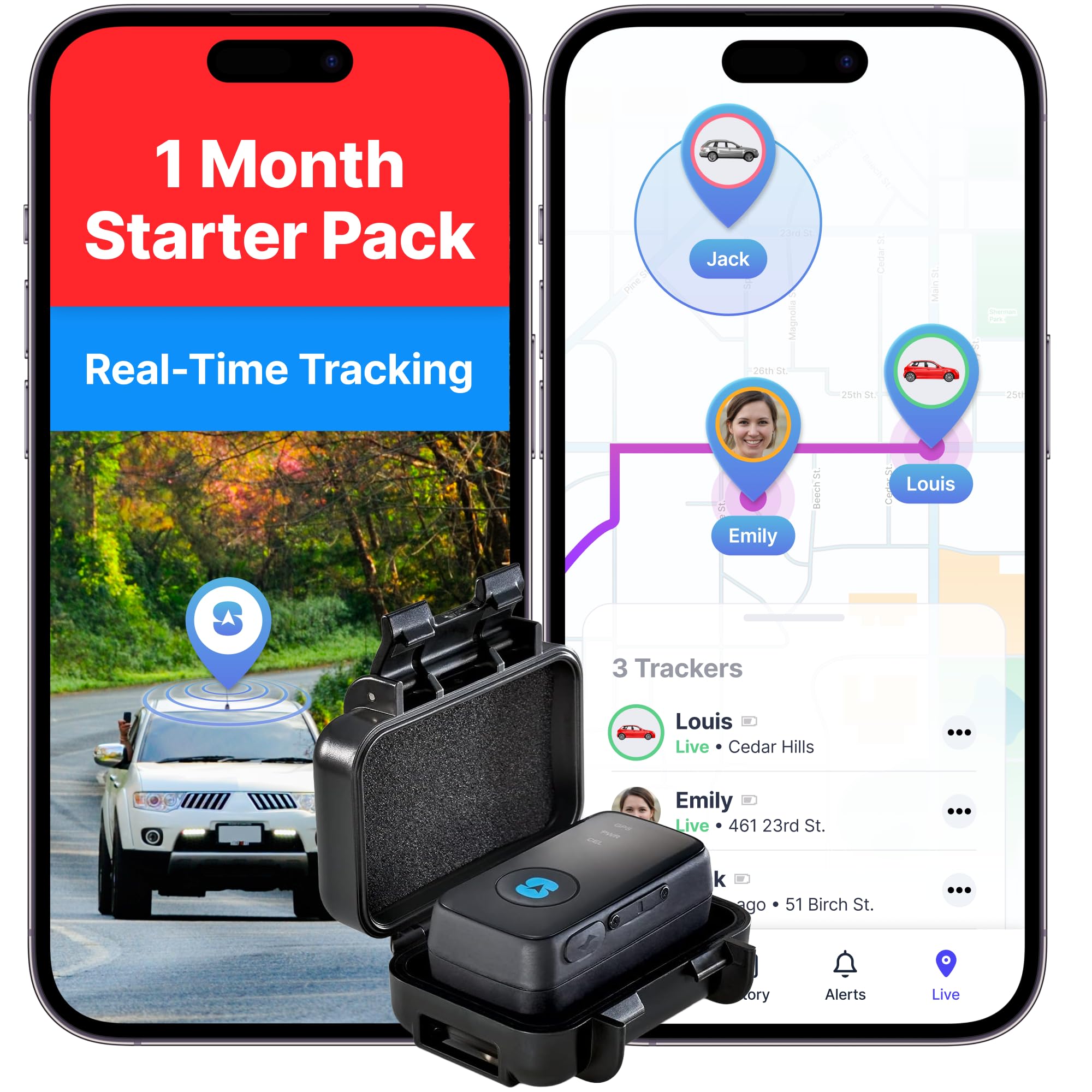
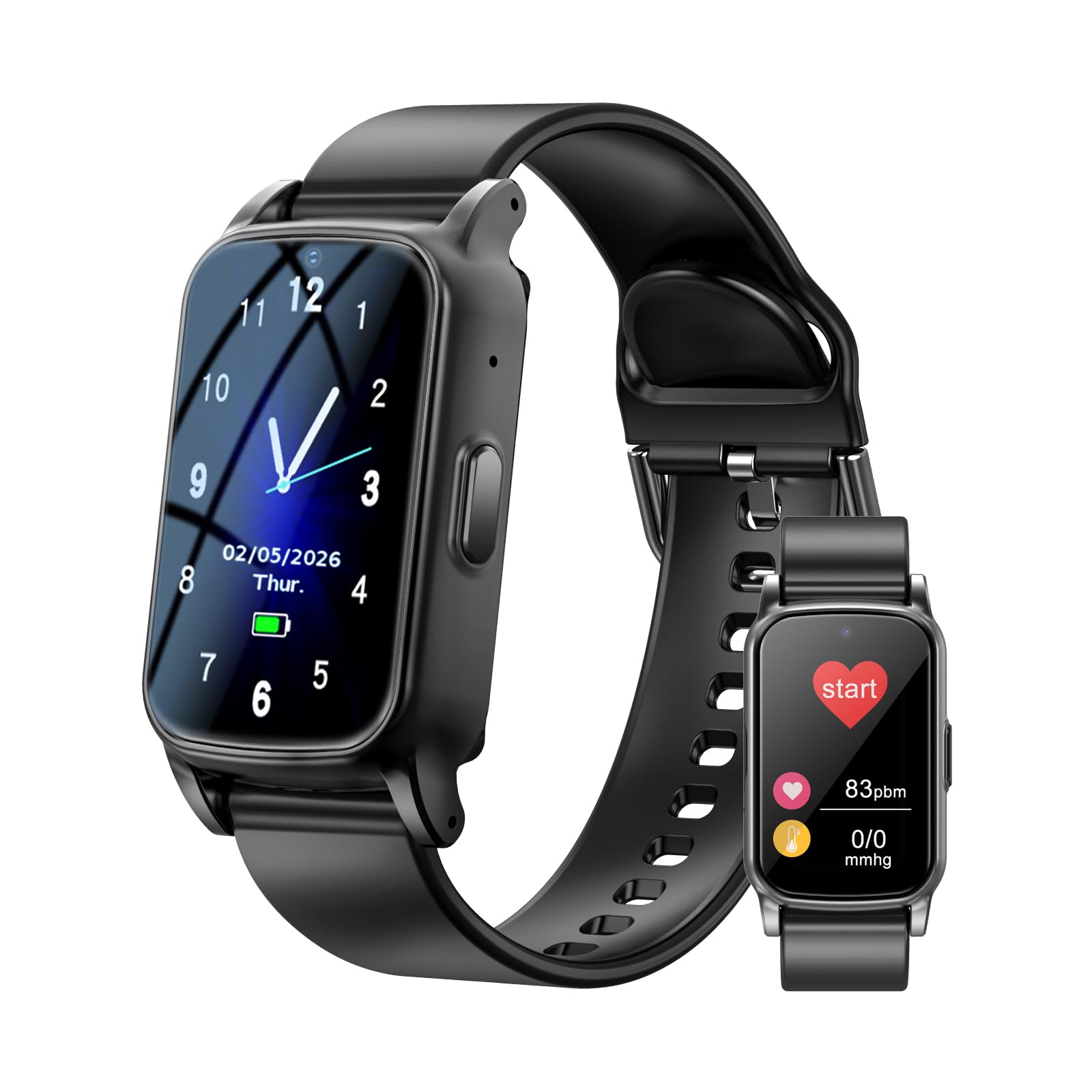
Selecting a device that offers real-time location updates and robust geofencing capabilities is essential. The Spytec Atlas GPS Tracker provides updates as fast as every five seconds, a 14‑day battery life, and a waterproof magnetic case that can be discreetly attached to a vehicle, wheelchair, or personal belongings. Priced at $14.95 with a 4.1‑star rating from 8,660 reviews, it balances affordability with reliable performance. Alternative options such as the AngelSense GPS Tracker Watch or the Fajocru Senior Smartwatch may be preferable for users who need a wearable solution.
Step 2: Activate the Service and Install the App
After purchasing the device, register the included first month of service through the manufacturer’s website. No activation fees or contracts are required, and the plan can be cancelled at any time. Download the companion app from the Apple App Store or Google Play Store; both iOS and Android platforms are supported. Create an account using a secure password, then pair the device by scanning the QR code on the tracker. The app will display the device’s current battery level, signal strength, and last known location.
Step 3: Position the Tracker Securely
For a non‑wearable solution, attach the Spytec Atlas GPS Tracker to a magnetic surface such as the underside of a car seat, a wheelchair frame, or a backpack. The durable ABS case protects the unit from rain, dust, and accidental impacts. Ensure the magnets make firm contact to prevent detachment during movement. If a wearable device is preferred, the AngelSense Watch can be strapped onto the wrist, while the Fajocru Smartwatch offers a larger display and fall‑detection features. Positioning the tracker close to the user maximizes signal reliability and reduces false alerts.
Step 4: Define Safe Zones (Geofences)
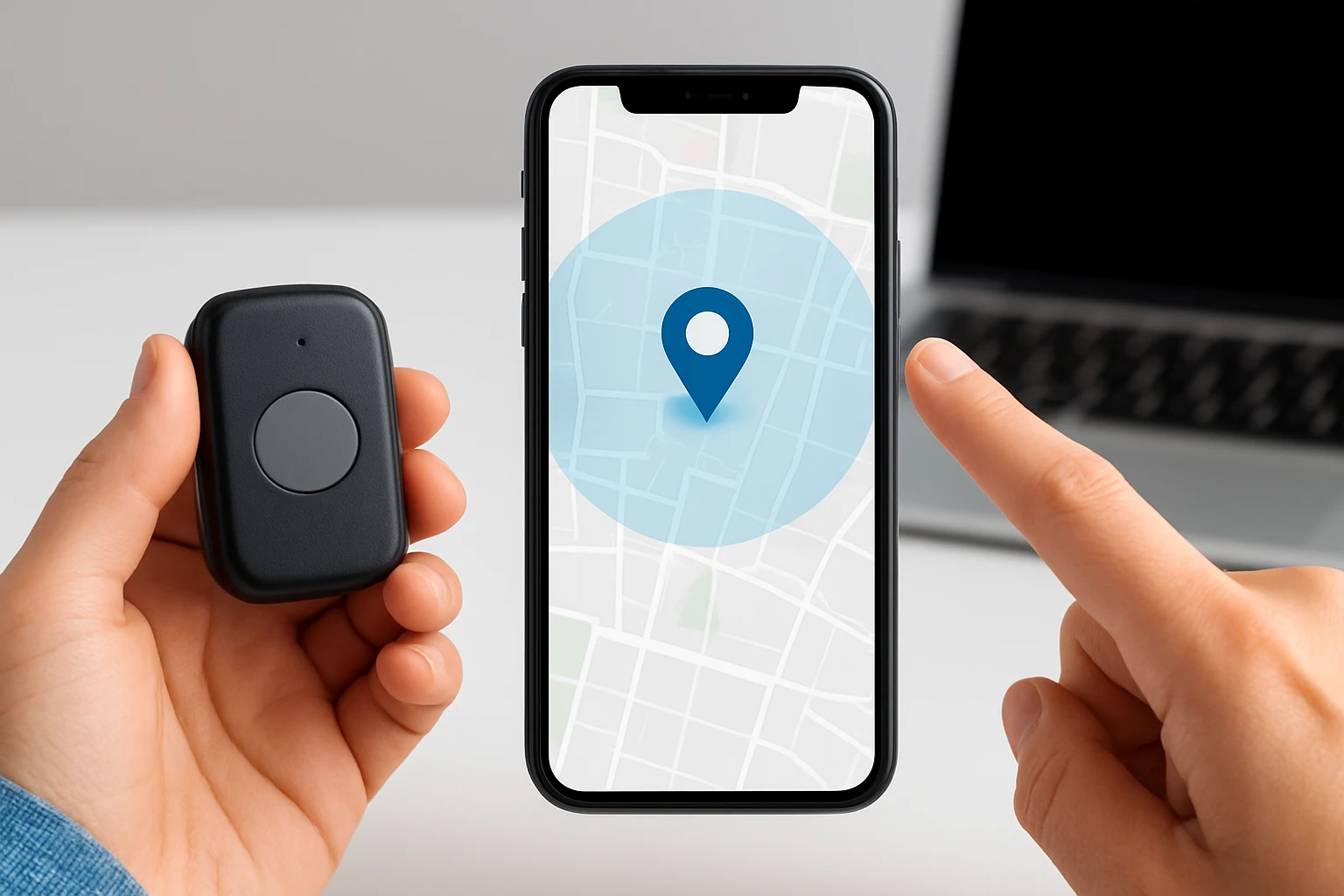
Open the app’s geofencing module and select "Create New Fence." Draw a polygon or circle around locations that are considered safe, such as the family home, a day‑care center, or a familiar park. Assign a descriptive name to each zone for easy identification. Set the alert threshold to trigger when the tracker moves beyond the fence by more than five meters. The Spytec Atlas GPS Tracker supports unlimited geofences, allowing caregivers to monitor multiple environments simultaneously.
Step 5: Configure Alert Preferences
Customize notification settings to match personal preferences. Choose to receive push notifications, SMS alerts, or email summaries when a geofence breach occurs. For caregivers who monitor several individuals, enable distinct sound tones for each person to differentiate alerts quickly. The AngelSense Watch offers additional safety features such as an SOS button and two‑way speakerphone, which can be activated automatically when a breach is detected. The Fajocru Smartwatch provides a step counter and heart‑rate monitoring, allowing caregivers to assess the individual's physical state alongside location data.
Step 6: Test the Geofence Functionality
Before relying on the system, conduct a controlled test. Move the tracker outside the defined safe zone while observing the app for an alert. Verify that the notification arrives on the caregiver’s phone and that the map updates with the new location. If the alert is delayed, adjust the update interval in the app settings; a faster interval (e.g., every 5‑10 seconds) improves responsiveness but may consume more battery. Confirm that the device’s battery level remains above 20 % after the test.
Step 7: Maintain the System
Regular maintenance ensures long‑term reliability. Charge the tracker according to the manufacturer’s recommendations—Spytec’s battery lasts up to 14 days, while AngelSense and Fajocru devices require daily charging. Replace the SIM card or subscription plan if service interruptions occur. Periodically review geofence boundaries, especially if the individual’s routine changes. Updating the app to the latest version provides security patches and feature enhancements.
Tips & Pro Tips
- Place the tracker in a location that is both discreet and has an unobstructed view of the sky to improve GPS accuracy.
- Use multiple geofences to create layered protection—for example, a larger outer fence for early warning and a smaller inner fence for immediate response.
- Integrate the alert system with existing emergency contacts; many apps allow you to add up to five guardians.
- Consider a backup power source such as a portable charger for wearable devices to avoid missed alerts due to dead batteries.
- Leverage the Time Machine feature of the Spytec Atlas GPS Tracker to review historical movement patterns and identify potential wandering trends.
Troubleshooting
No Alerts Received: Verify that push notifications are enabled for the app and that the device’s battery is not depleted. Ensure the mobile data connection is active; a weak signal can delay location updates.
Inaccurate Location: Re‑position the tracker away from metal objects or thick walls that may interfere with satellite signals. Restart the device through the app’s reset function.
Battery Draining Quickly: Reduce the update frequency to every 30 seconds instead of 5 seconds, and disable non‑essential features such as continuous voice streaming.
Conclusion
By following these seven steps, caregivers can establish reliable geofencing alerts that safeguard individuals with dementia while preserving their autonomy. The combination of a dependable GPS tracker, thoughtful geofence configuration, and regular system maintenance creates a robust safety net. Whether one chooses the cost‑effective Spytec Atlas GPS Tracker or a feature‑rich wearable like AngelSense or Fajocru, the core principles remain the same: accurate location data, timely alerts, and clear communication channels. Implementing this system empowers caregivers to respond swiftly, reducing anxiety for families and improving quality of life for those affected by dementia.
Products Mentioned in This Guide
Frequently Asked Questions
What is a geofencing alert and how does it protect someone with dementia?
A geofencing alert notifies caregivers when a tracked person crosses a virtual boundary, helping prevent dangerous wandering while allowing independence.
How do I set up a geofence with the Spytec Atlas GPS Tracker?
Install the Atlas app, register the device, then draw or select a safe‑zone radius on the map and enable breach notifications.
Can I customize the size and shape of the safe zone?
Yes, most apps let you adjust the radius or draw polygonal areas to match homes, gardens, or community centers.
What steps should I take after receiving a geofence breach notification?
Immediately check the real‑time location in the app, contact the person if possible, and alert emergency contacts if the person is far from the safe zone.
Is a monthly subscription required for geofencing alerts?
A subscription is typically needed for cellular data and alert services, though many trackers offer a free trial month.