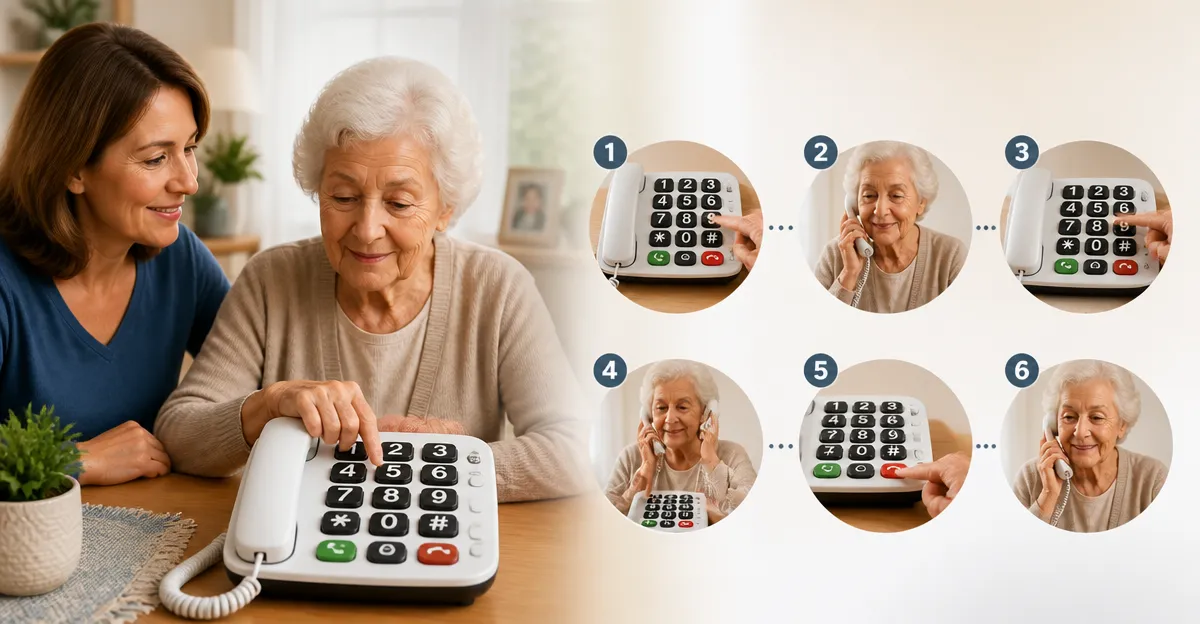
How to Teach a Senior with Dementia to Use a Large-Button Phone: Simple Step‑by‑Step Guide for Caregivers
Introduction
This guide explains how a caregiver can confidently introduce a senior with dementia to a large‑button landline phone. The reader will learn how to select an appropriate device, set up visual and auditory cues, and practice calling routines until they become second nature. By following these steps, caregivers can preserve independence, reduce anxiety, and maintain vital family connections for seniors who struggle with memory loss or sensory impairments.
What You’ll Need
- One large‑button landline phone (see product recommendations below)
- RJ11 telephone line access
- Printed or laminated photo cards for speed‑dial buttons
- Simple instruction sheet with pictures
- Optional: small screwdriver for programming buttons, adhesive labels, and a night‑light for visual alerts
Step‑by‑Step Instructions
Step 1: Choose the Right Phone for the Senior’s Needs
Select a device that matches the senior’s visual, auditory, and cognitive abilities. For most situations, the Sacumea Big Button Landline Phone is an excellent starting point. It features oversized 1.06" × 1.18" buttons, high‑contrast black numbers on a white background, and an adjustable ringer that reaches over 110 dB. The phone costs $27.99, carries a 4.2‑star rating from 170 reviews, and does not require batteries, ensuring operation during power outages. Its built‑in SOS button provides an immediate emergency call option, which is essential for seniors living alone.
If the senior benefits from visual memory cues, consider the Sacumea Picture Memory Senior Phone. This model adds nine programmable photo keys, allowing the user to press a picture instead of remembering a number. Priced at $28.29 with a 4.2‑star rating from 161 reviews, it also offers an adjustable volume exceeding 110 dB and hands‑free calling for limited‑mobility users.
For caregivers who need a phone with the loudest possible ringer, the Uvital Big Button Corded Phone delivers up to 120 dB ringtone and includes eight speed‑dial buttons plus an SOS button. It is priced at $28.49 and holds a 4.1‑star rating from 348 reviews. Its LED flash alert further assists seniors with hearing loss.
When a wall‑mounted solution is preferred, the Blue Donuts Big Button Phone offers a speaker‑phone mode and ten two‑touch memory slots. Although some users report missing volume‑control features, the phone remains a budget‑friendly $25.99 option with a 4‑star rating from over 1,100 reviews.
For the most feature‑rich option, the Serene Innovations Amplified Photo Phone provides nine picture‑dial buttons, a powerful 85 dB ringer, and tactile Braille decals for blind users. It costs $115.95 and carries a 3.9‑star rating from 791 reviews. This model is best suited for seniors with combined visual, auditory, and cognitive challenges.
Step 2: Install the Phone and Verify Line Connectivity
Plug the handset into an active RJ11 wall jack. Because all recommended phones are corded, no additional power adapters are required. Verify that the handset lifts a clear dial tone. If the line is inactive, contact the telephone service provider before proceeding.
For wall‑mounted models such as the Serene Innovations phone, follow the included mounting instructions to secure the base. Ensure the handset rests in the cradle without requiring additional force, as some seniors with limited grip strength may find a loose cradle frustrating.
Step 3: Program Speed‑Dial Buttons with Photos or Labels
Using the phone’s programming mode (usually a combination of holding a button and entering a numeric code), assign the most frequently called contacts to the speed‑dial keys. For the Sacumea Picture Memory Senior Phone, upload small 1" × 1" photos of family members; the user can then press a picture to call instantly. The programming process takes roughly 20 seconds per button, as noted in the product description.
When programming the Uvital or Blue Donuts models, attach clear adhesive labels with large printed names or photographs. The Uvital phone’s eight one‑touch buttons are ideal for a concise contact list, while the Blue Donuts phone provides ten two‑touch memory slots for additional emergency numbers.
For the Serene Innovations phone, consider adding Braille stickers to the 911 button, as one reviewer described. This tactile cue assists blind or low‑vision seniors in locating the emergency function without visual assistance.
Step 4: Adjust Audio and Visual Alerts
Set the ringtone volume to a level that the senior can hear comfortably. The Sacumea Big Button Landline Phone allows volume adjustment up to 80 dB on the handset and over 110 dB on the ringer. For users with profound hearing loss, increase the ringer to its maximum and enable the flashing LED light, which provides a visual cue for incoming calls.
The Uvital phone’s LED flash is especially bright; position the phone where the senior’s line of sight naturally falls, such as on a bedside table. For the Blue Donuts model, note that some reviewers reported the speaker‑phone function is unreliable; therefore, rely on the handset for clear audio.
Test the SOS button on each device to ensure it dials the intended emergency number. Program the SOS button to call 911 or a trusted caregiver’s mobile phone, depending on the senior’s living situation.
Step 5: Conduct a Guided Practice Session
Sit with the senior in a quiet environment. Demonstrate how to lift the handset, press a photo or labeled button, and listen for the dial tone. Encourage the senior to repeat the action several times, offering praise for each successful attempt.
Use a simple script: “Pick up the handset, press Mom’s picture, wait for the ring, then say hello.” Record the steps on a laminated sheet placed next to the phone for visual reinforcement.
If the senior experiences difficulty, break the action into micro‑steps: first, lift the handset; second, locate the correct button; third, press gently. The large buttons on all recommended phones reduce the chance of mis‑dials, a frequent concern for users with tremors.
Step 6: Establish a Daily Routine
Integrate phone use into a regular schedule, such as a morning check‑in with a family member or an evening call to a caregiver. Consistency reinforces memory pathways and reduces anxiety about using the device.
Document the routine on a visible calendar. Over time, the senior will anticipate the call, making the phone a source of comfort rather than a source of confusion.
Tips & Pro Tips
- Use high‑contrast colors. White backgrounds with black numbers, as found on the Sacumea phone, improve readability for seniors with cataracts.
- Label buttons with both photos and text. Some users benefit from dual cues, especially when vision fluctuates.
- Keep the handset cord short enough to avoid tripping. The 9‑foot coiled cord on the Sacumea phone provides ample reach without excess slack.
- Test the SOS button weekly. Accidental re‑programming can occur if the button is pressed unintentionally.
- Consider a night‑light. A low‑intensity lamp near the phone helps seniors locate the device after dark.
- Backup the programming. Write down each button’s assigned number in a notebook; this aids troubleshooting if the phone loses memory after a line interruption.
Troubleshooting
| Problem | Possible Cause | Solution |
|---|---|---|
| No dial tone | Phone line not active or cord disconnected | Confirm service provider activation; reseat the RJ11 plug. |
| Volume too low | Handset volume not adjusted or speaker malfunction | Increase volume using the phone’s volume knob; test with another handset if available. |
| Button does not call | Programming error or line interruption | Re‑program the button following the four‑step guide; avoid disconnecting the line after programming. |
| LED flash not working | Faulty LED module | Contact manufacturer support; consider a different model with reliable visual alerts. |
Conclusion
By selecting a suitable large‑button phone, configuring visual and auditory cues, and practicing in a supportive environment, caregivers can empower seniors with dementia to maintain meaningful communication. The steps outlined above reduce frustration, enhance safety through SOS functionality, and promote independence. Consistent reinforcement and periodic troubleshooting will ensure the phone remains a reliable lifeline for years to come.
Products Mentioned in This Guide
Frequently Asked Questions
What features should I look for when choosing a large‑button phone for a senior with dementia?
Choose a phone with oversized, high‑contrast buttons, a clear speaker, visual cues like LED lights, and simple speed‑dial programming.
How can I set up visual cues to help a senior remember which button to press?
Attach laminated photo cards or color‑coded labels to each speed‑dial button and place a night‑light nearby for low‑light visibility.
What is the best way to teach the calling routine to a senior with memory loss?
Break the process into three steps—pick up, press the pre‑programmed button, and hang up—then practice daily with praise and repetition.
Do I need any special tools to program the large‑button phone?
Usually a small screwdriver or the phone’s built‑in programming button is enough to assign speed‑dial numbers and attach labels.
How can I reduce anxiety for a senior when using the phone for the first time?
Start with short, familiar calls, use a calm tone, and provide a simple printed instruction sheet with pictures to reinforce each step.