Introduction
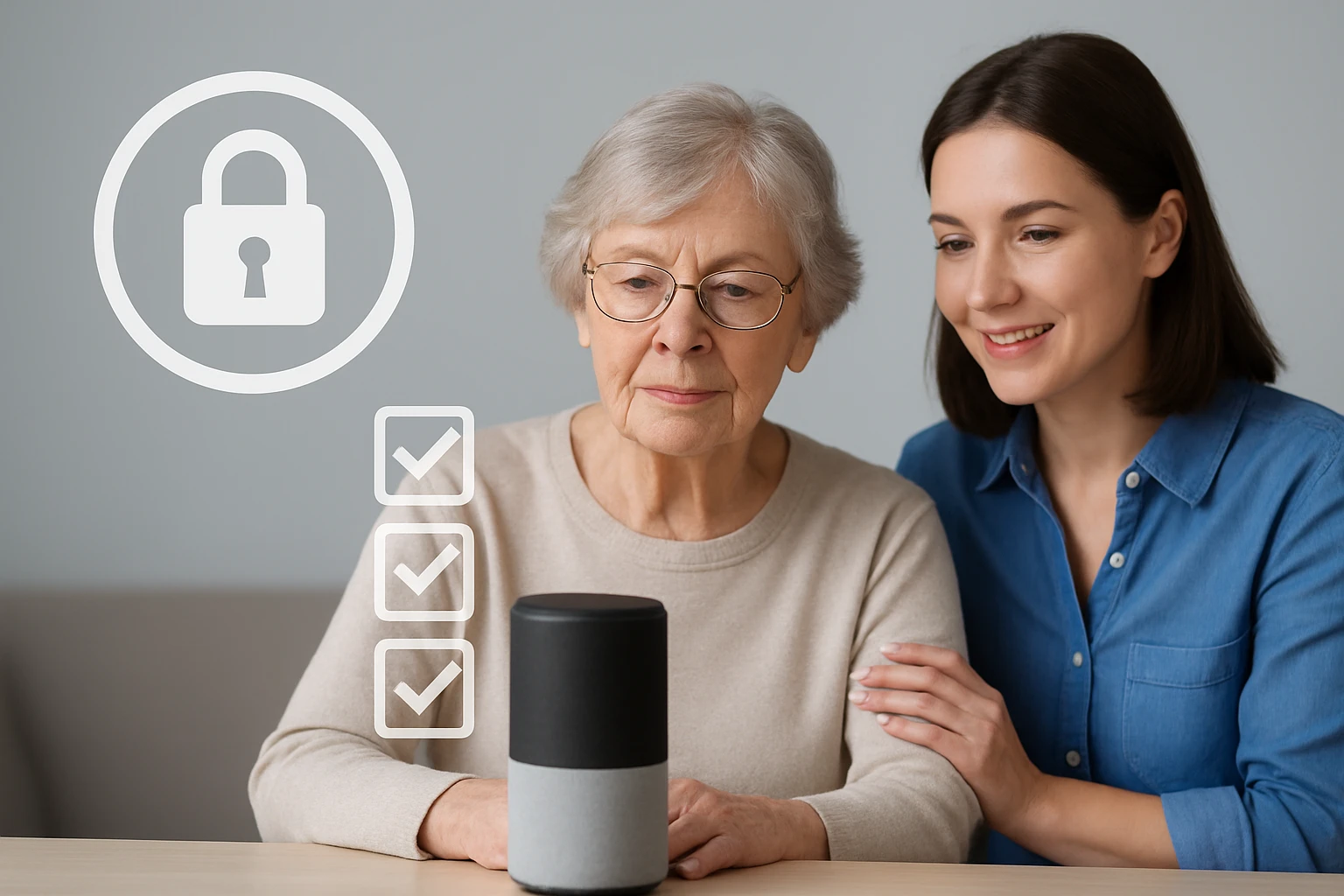
In an era where voice assistants such as Alexa, Google Assistant, and Siri are embedded in everyday devices, safeguarding personal information has become essential. This guide explains how caregivers and seniors can configure privacy settings, limit data collection, and maintain control over voice interactions. By following the steps, one will reduce the risk of unintended recordings, protect sensitive conversations, and ensure that the technology serves as a helpful companion rather than a privacy liability.
The instructions are written for individuals with moderate technical comfort. The tone remains professional, and each recommendation is supported by a practical example. Although the guide can be followed without purchasing any product, specific tools are suggested where they simplify the process or enhance protection.
What You'll Need
- Smartphone or tablet with the companion app for the voice assistant (e.g., Amazon Alexa app, Google Home app, Apple Home app).
- Internet connection (Wi‑Fi or cellular data).
- Access to the device's settings menu.
- Optional: AccEncyc Phone Speaker Dust Cover Kit to protect the speaker and microphone from dust and accidental activation.
Step‑by‑Step Instructions
1. Verify Account Ownership
Before adjusting any privacy option, one must confirm that the primary account belongs to the caregiver or the senior user. Open the voice‑assistant app, navigate to the account section, and ensure that the email address displayed matches the intended owner. If multiple accounts are linked, remove any that are no longer needed to prevent unauthorized access.
Why this matters: Unused accounts can retain voice recordings and location data, which may be accessed by third parties. Consolidating accounts reduces the attack surface.
2. Review and Delete Existing Voice Recordings
Most voice assistants store recordings in the cloud for improving services. To delete them, locate the privacy or history section within the app:
- Open the app and tap the menu icon.
- Select Settings > Privacy > Voice History.
- Choose Delete All Recordings or delete specific entries by date.
After deletion, enable automatic deletion where available. This prevents future recordings from accumulating without consent.
3. Adjust Voice Recording Preferences
Set the assistant to stop storing recordings automatically:
- Navigate to Settings > Privacy > Manage Your Data.
- Toggle the option labeled “Save Voice Recordings” to Off.
When this option is disabled, the assistant will still process commands locally but will not retain the audio in the cloud. This is a key safeguard for seniors who may be concerned about inadvertent data collection.
4. Restrict Third‑Party Skill Access
Voice assistants support third‑party “skills” or “actions” that extend functionality. Each skill may request permission to access personal data. Review installed skills and disable any that are unnecessary:
- Open the app and go to Skills & Games (or Actions for Google).
- Identify skills that request microphone, location, or contact access.
- Tap Disable for those not essential to daily routines.
Limiting skill permissions reduces the likelihood of data leakage through third‑party services.
5. Configure Wake‑Word Sensitivity
Many devices allow adjustment of the wake‑word detection threshold. Lower sensitivity reduces accidental activations caused by background noise. To modify this setting:
- Open the device settings within the companion app.
- Select Voice > Wake‑Word Sensitivity.
- Move the slider toward Low while testing the wake word to ensure reliable activation.
For seniors with hearing impairments, a slightly higher sensitivity may be required; however, the balance should favour privacy.
6. Protect the Physical Speaker and Microphone
Dust and debris can interfere with microphone performance, causing the assistant to misinterpret sounds and inadvertently record. Applying a dust‑proof cover to the phone speaker and microphone offers a simple physical barrier. The AccEncyc Phone Speaker Dust Cover Kit provides 120 ultra‑thin mesh stickers, a cleaning brush, and tweezers for precise placement.
Key features of the kit include:
- High‑quality durable material that does not affect sound output.
- Water‑resistant nano‑level membrane to prevent moisture intrusion.
- Lightweight design compatible with most phone models and cases.
- Easy installation using the included brush and tweezers.
Price: $6.99; Rating: 4.4/5.0 (157 reviews). By covering the speaker, one reduces the chance that stray sounds trigger the assistant, thereby limiting unwanted recordings.
7. Enable Voice‑Assistant Lock (If Available)
Some devices offer a lock feature that requires a PIN or biometric verification before the assistant can process commands. Activate this feature to add an extra layer of security:
- Open the device settings in the app.
- Select Security > Voice Assistant Lock.
- Set a memorable four‑digit PIN or enable fingerprint authentication.
This step is particularly useful in shared living environments where multiple individuals may have access to the same device.
8. Schedule Regular Privacy Audits
Privacy is not a one‑time configuration. Establish a monthly routine to revisit settings, delete new recordings, and verify that no new skills have been installed without consent. Create a simple checklist and store it in a visible location, such as on the refrigerator, to remind caregivers and seniors of the audit.
Tips & Pro Tips
- Use Voice Commands Sparingly: Encourage the senior to speak clearly and directly to the device, reducing background noise that can cause false activations.
- Disable Drop‑In and Intercom Features: These functions allow other users to listen to the device’s microphone remotely. Turn them off unless they are required for emergency monitoring.
- Maintain Firmware Updates: Manufacturers often release privacy‑enhancing patches. Enable automatic updates to keep the device secure.
- Leverage Physical Mutes: Many smart speakers have a mute button that electronically disables the microphone. Use it when privacy is paramount, such as during medical consultations.
- Combine Dust Covers with Screen Protectors: A clean speaker works best with a clear screen protector that does not interfere with voice detection.
Troubleshooting
| Problem | Possible Cause | Solution |
|---|---|---|
| Assistant does not respond after adjusting sensitivity. | Sensitivity set too low. | Increase the wake‑word sensitivity incrementally and test again. |
| Dust cover interferes with sound quality. | Sticker not properly aligned. | Remove the sticker using the provided tweezers, clean the speaker with the brush, and reapply ensuring a smooth fit. |
| Unexpected recordings appear. | Third‑party skill still active. | Re‑visit the skill management page and disable any remaining permissions. |
Conclusion
By following the outlined steps, caregivers and seniors can secure voice‑assistant privacy settings, limit data retention, and protect against accidental activation. The combination of software configuration, physical safeguards such as the AccEncyc Phone Speaker Dust Cover Kit, and regular audits creates a robust privacy posture. One should view these actions as ongoing habits rather than a single setup, ensuring that the technology remains a helpful ally without compromising personal information.
Products Mentioned in This Guide
Frequently Asked Questions
How can caregivers limit voice assistant recordings?
Use the companion app to disable automatic saving of voice clips and turn off the “Improve Voice Recognition” feature.
What steps remove stored voice data from Alexa, Google Assistant, and Siri?
In each app’s privacy settings, locate “Voice History” or “Audio Recordings” and select “Delete All” or set automatic deletion after a chosen period.
Can the microphone on a voice assistant be turned off permanently?
Yes, most devices have a physical mute button or a software toggle that disables the microphone until re‑enabled.
Which companion apps are needed to manage privacy settings?
Use the Amazon Alexa app, Google Home app, or Apple Home app corresponding to the assistant you own.
Are there recommended tools to enhance voice assistant privacy for seniors?
Consider a microphone blocker plug or a smart‑plug timer that powers the device off when not in use, reducing accidental recordings.